

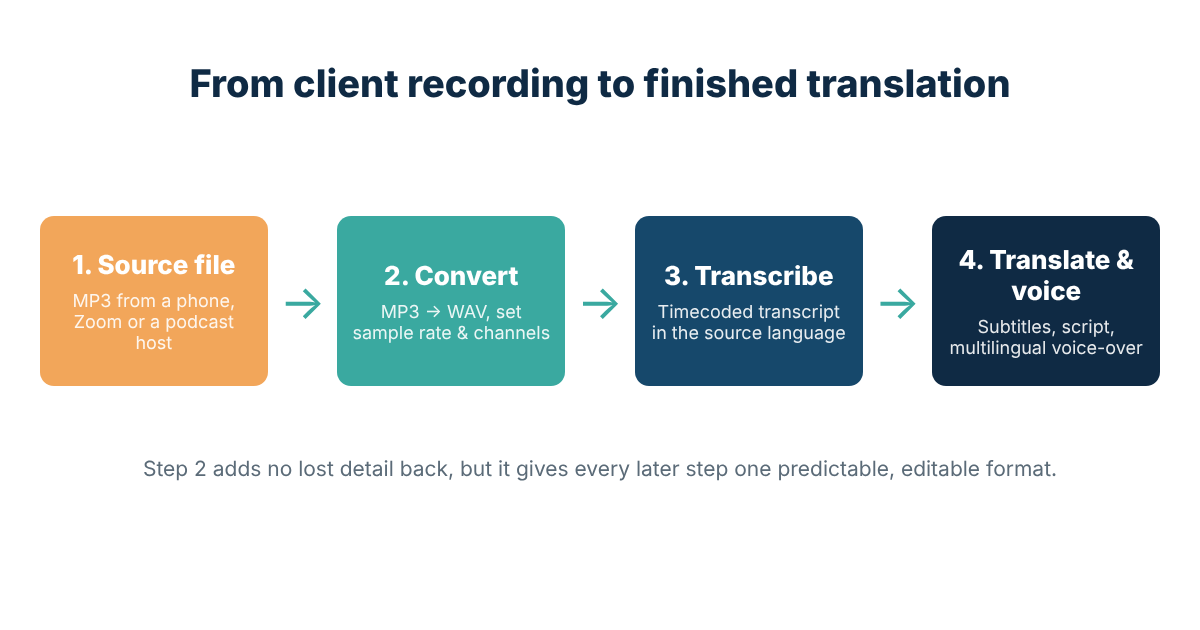
Most audio that reaches a translation agency arrives as MP3: a phone recording of an interview, a Zoom export, a podcast episode pulled from a hosting platform. A transcriber can usually work with it as it is, but editing software, speech-recognition engines and dubbing studios often ask for WAV instead. Convertio's mp3 to wav converter online re-encodes an MP3 recording into an uncompressed WAV file directly in the browser, so the person managing the project can hand the studio exactly the format it requested without installing audio software.
The conversion itself takes a minute. Knowing when it helps, which settings to pick and what it cannot fix takes a little longer, and that is what this guide covers.
Why the audio format matters in a language project
A recording in a translation workflow rarely stays in one place. It is transcribed, timecoded, translated, turned into subtitles and sometimes re-voiced in several languages. Each of those stages runs on different software, and each person in the chain opens the same file.
Problems tend to show up at the hand-offs:
- Editing software trims and normalises WAV files without degrading them. Every time an MP3 is edited and saved again as MP3, it goes through another round of lossy compression.
- Speech-recognition engines used for a first transcription draft often expect uncompressed PCM audio at a specific sample rate, and some reject MP3 outright.
- Dubbing and voice-over studios work at the sample rate of the video project, usually 48 kHz, and want reference tracks they can drop straight onto the timeline.
None of this makes MP3 a bad format. It was designed to make music small enough to share, and it does that well. It is simply a delivery format, while transcription and voice-over are production work.
MP3 vs WAV at a glance
WAV was published by IBM and Microsoft in 1991 as a container for audio, usually holding uncompressed linear PCM (the WAV entry on Wikipedia covers the technical structure in detail). MP3 removes the parts of the signal the ear is least likely to notice, which is why its files are so much smaller.
| Feature | MP3 | WAV (PCM) |
|---|---|---|
| Compression | Lossy | None |
| One minute, stereo | ≈ 0.96 MB at 128 kbps | ≈ 10.6 MB at 44.1 kHz / 16-bit |
| Repeated editing | Quality drops with every re-save | No loss on re-save |
| Size limit | Practically none | Under 4 GB per file (RF64 removes this) |
| Best fit in language work | Sending, archiving, listening for review | Editing, speech recognition, dubbing, subtitling with precise timing |
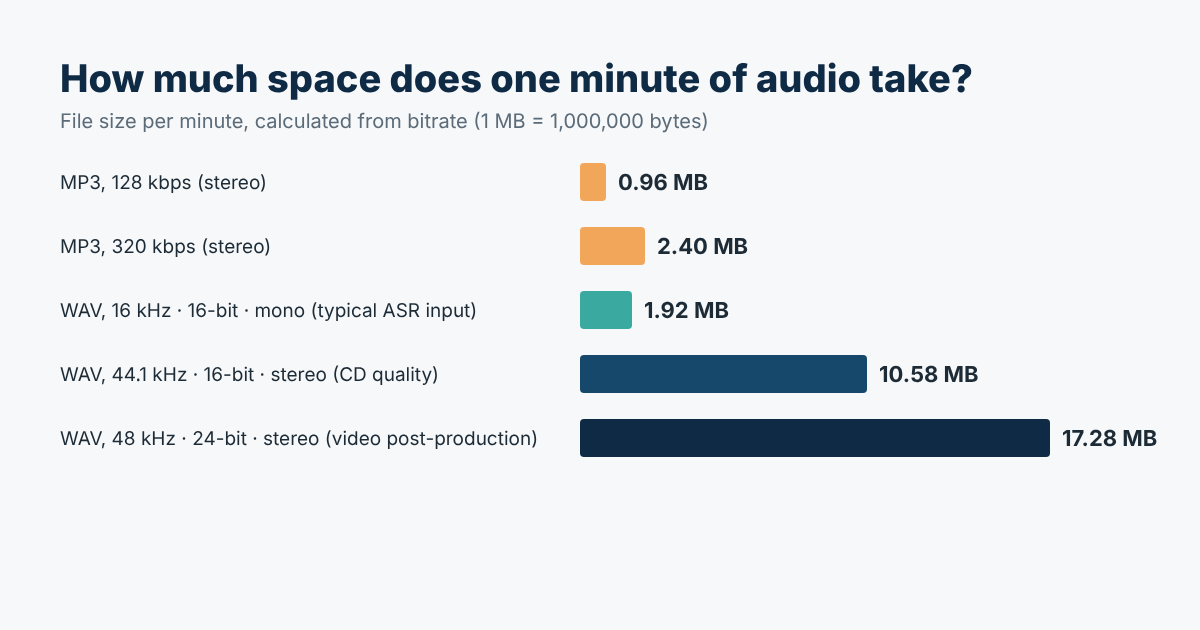
The difference in size matters more than people expect. A one-hour board meeting at CD-quality WAV comes to roughly 635 MB, compared with about 58 MB as a 128 kbps MP3. Plan the upload method before converting a whole archive.
What converting MP3 to WAV can and cannot do
Worth knowing: converting MP3 to WAV does not restore the detail removed by MP3 compression. A muffled 64 kbps phone recording stays muffled, just in a larger file. What you gain is a stable, editable copy that will not lose anything more on the way through transcription, editing and voice-over.
The conversion does help with:
- meeting a studio or software requirement for WAV input;
- preventing further quality loss when the audio is cut, cleaned or normalised several times;
- setting a consistent sample rate across files from different sources;
- preparing mono 16 kHz audio for speech-recognition tools that expect it.
It does not help with:
- background noise, echo or overlapping speakers;
- a low original bitrate;
- a speaker who is far from the microphone.
For those, the answer is a better recording or professional audio clean-up. A file format change will not fix them.
Which WAV settings to choose for each task
Convertio exposes three advanced options for WAV output: codec (PCM 16-bit, 24-bit or 32-bit, plus A-law and µ-law), audio channels (from mono up to 7.1) and sample rate (1,000 Hz to 96,000 Hz). The table below shows sensible starting points.
| Task | Codec | Channels | Sample rate |
|---|---|---|---|
| Human transcription | PCM 16-bit | Keep original | Keep original |
| Speech-recognition first draft | PCM 16-bit | Mono* | 16,000 Hz (check the engine's documentation) |
| Voice-over and dubbing reference | PCM 24-bit | Keep original | 48,000 Hz (video standard) |
| Subtitling and captioning | PCM 16-bit | Keep original | Match the video, usually 48,000 Hz |
*Do not downmix to mono if each speaker was recorded on a separate channel. That separation is one of the most useful things a transcriber can get, because it makes overlapping speech far easier to attribute.
Step by step: MP3 to WAV in Convertio
- Open the MP3 to WAV page and add your files. You can drag them in from your computer, pick them from Google Drive or Dropbox, or paste a URL. Several MP3s can go in one batch.
- Confirm WAV as the output format for each file. This matters when a batch mixes several source formats.
- Open the settings (gear icon) and set the codec, channels and sample rate from the table above. Leave them on "no change" if you only need a WAV container.
- Click Convert and wait for processing to finish. The work runs on Convertio's servers, so the speed of your computer does not matter.
- Download the WAV files and listen to the first and last 30 seconds of each one before sending them on.
About confidential recordings: according to Convertio, uploaded files are deleted right after conversion and converted files are removed within 24 hours. For legal hearings, medical dictation or anything under an NDA, check your client's data-handling rules before uploading audio to any cloud service.
Five mistakes that cost time later
- Renaming .mp3 to .wav. The extension changes but the content does not, and most editors will refuse the file or play static.
- The round trip. MP3 → WAV → edit → MP3 → send to the studio → WAV again. Each MP3 stage adds new artefacts. Convert once at the start and stay in WAV until final delivery.
- Upsampling for no reason. Turning a 22 kHz phone recording into 96 kHz quadruples the file size and adds nothing you can hear.
- Collapsing separate speaker channels to mono. See the note under the settings table.
- Unclear file names. "audio_final_v2.wav" tells the transcriber nothing. A name like
2026-10-03_board-meeting_EN_speakerA-B.wavsaves an email exchange.
Checklist before you send audio to a translation team
☐ Source language(s) and any dialects or accents are noted
☐ Number of speakers and their names or roles are listed
☐ Format agreed in advance (WAV or the original MP3)
☐ Sample rate matches the video for subtitling or voice-over work
☐ Timecode requirements are stated (every speaker change, every 30 seconds, etc.)
☐ Large files go through a transfer link rather than email
☐ The original MP3 is archived alongside the converted WAV
If the next step is a written transcript, PoliLingua's transcription services cover legal, medical, academic and business recordings, including transcription combined with translation. When the goal is a new soundtrack in another language, our multilingual voice-over team works from the WAV reference and the translated script together.
What to send along with the audio when it needs translating
A clean WAV file solves the technical side. The linguistic side depends on context that never appears in the waveform. When a recording is going to be transcribed and then translated, subtitled or re-voiced, these items save the most back-and-forth:
| What to include | Why the linguist needs it |
|---|---|
| Target languages and locales | Spanish for Spain and Spanish for Mexico call for different voice talent, vocabulary and subtitle conventions. |
| Glossary or list of names | Product names, acronyms and people's names are where audio is most often misheard. A written list removes the guesswork. |
| Original script, slides or notes | If the speaker read from a script, the transcriber can check against it rather than reconstructing unclear passages. |
| Intended use | A verbatim legal transcript, readable subtitles and a lip-synced dub need three different translation approaches. |
| The video file, if there is one | On-screen text, gestures and who is speaking often change how a line should be translated. |
| Deadline and delivery format | SRT, VTT, a Word transcript or studio stems determine how the work is set up from day one. |
A practical rule from translation projects: one hour of audio rarely means one hour of work. Transcription, translation, timing and voice recording each add their own time, and unclear audio or missing context is what stretches the schedule most. Ten minutes spent on the file and the brief usually saves days later.
Quick answers
Does WAV make automatic transcription more accurate?
Not by itself. Accuracy depends on how clean the original recording is. WAV removes format incompatibility and stops further degradation, which is a different benefit.
Will a long recording hit the 4 GB WAV limit?
Only with very long files. At 48 kHz, 24-bit stereo, a standard WAV reaches 4 GB after about four hours. At CD settings it lasts closer to six and three-quarter hours.
Should I keep the original MP3?
Yes. It is the true source. The WAV is a working copy made for production.
Can the same approach work for other formats?
Yes. The same reasoning applies to M4A voice memos, AAC from video platforms and OGG files from messaging apps. Convert to an uncompressed format once, then do all the editing on that copy.