

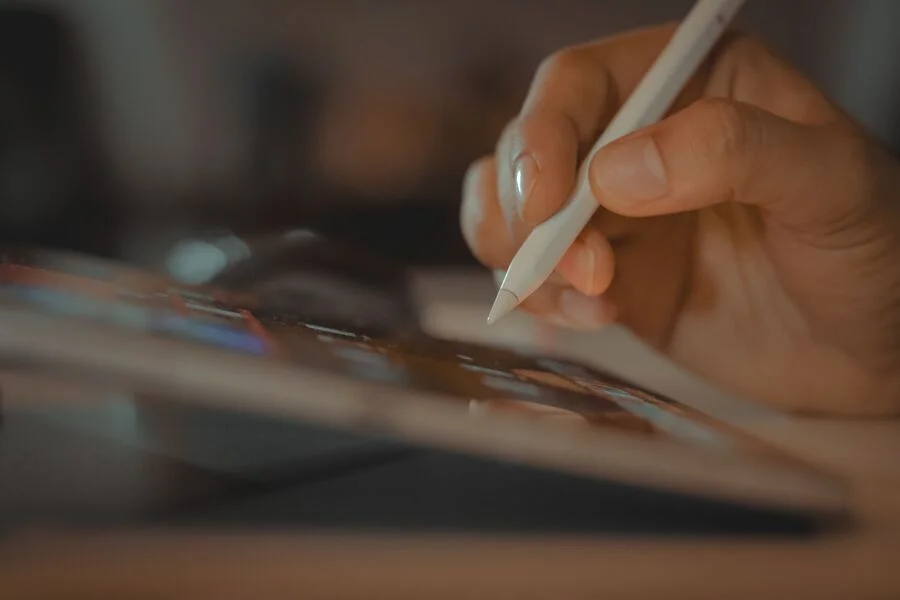
Digital writing is now a standard practice for many professionals. It saves time, streamlines daily tasks and reduces the need to carry physical notebooks everywhere. The iPad supports this shift with accurate touch response, fast processors and long battery life that keeps you working through the day. Popular apps like GoodNotes, Notability and Apple Notes add handwriting recognition, clean shape correction and quick export tools that fit easily into a busy workflow.
For people who write often, the goal is to build a smooth and distraction free workspace. This usually includes a stable stand, a comfortable writing angle and a textured surface that offers more control during fast note taking or sketching.
The Need for a Paper-Like Writing Experience
Writing on a smooth glass screen can feel unnatural. The pen tip tends to slide more than expected and this creates a small delay between intention and action. Over long writing sessions, this can affect accuracy and overall comfort. Many professionals notice that their handwriting looks different on digital screens compared to real paper. This often leads to uneven pressure and less control over fine strokes.
Why Texture Improves Writing
A paper feel surface adds gentle resistance to the Apple Pencil. This small change makes the writing experience more stable. Slow strokes become easier to guide and tiny details are cleaner, which matters for drafting ideas, marking documents or planning daily tasks.
A textured surface offers benefits such as:
- Better grip control during long note taking sessions
- Smoother shading for design work and sketching
- Steady lines that help maintain natural handwriting
Your hand movements feel familiar and predictable, similar to using a traditional notebook.For designers, engineers, educators and business users, this consistency builds confidence. It improves productivity and keeps the writing process comfortable, even during high workload days.
Understanding Screen Texture and Pencil Feedback
Digital writing feels different depending on the accessories you choose. The screen, pencil tip and texture all work together. When you understand how each part affects stroke quality, you can build a smoother and more consistent writing setup for daily use.
Key Factors That Shape Your Writing Experience
Pencil Tip Friction
- Friction controls how the pencil moves across the screen.
- Low friction gives fast movement but less stability.
- High friction slows your strokes a little yet gives more precision during notes, diagrams and long writing sessions.
Surface Noise
- Some protectors make a scratching sound when you write.
- High quality textured films lower this noise and still keep the surface steady.
- This makes writing more comfortable, especially in quiet offices or meeting rooms.
Light Diffusion
- Textured screens spread light in small amounts.
- Premium protectors keep the image sharp and reduce glare.
- You can read documents, mark PDFs and sketch details without losing clarity.
Pencil Pressure Response
- Modern iPads read tilt, angle and pressure.
- A paper feel surface improves that feedback.
- Strokes become natural and controlled, which helps professionals who need stable lines and accurate shading.
Blending Comfort and Productivity with Your Setup
A smooth writing routine depends on the tools you use and how they work together. Comfort plays a big role in how long you can write without tension. When your device feels natural in your hands, your focus shifts from adjusting your grip to shaping clear strokes. This improves accuracy and keeps your flow steady during long sessions.
Building a Better Writing Environment
The right setup creates a stable space that supports speed and clarity.
- Use a Solid Stand
A firm stand holds your iPad at a steady angle. It prevents slipping, reduces neck strain and helps your wrist stay relaxed during long writing blocks. - Choose a Textured Screen Surface
A paper-like texture adds gentle resistance. This makes slow strokes easier to control. It also gives your writing a familiar feel that is close to using real paper. - Keep Your Tools Organized
When your workspace is neat, your thoughts stay clear. You avoid constant adjustments and interruptions.
Pairing a stable stand with a textured surface brings comfort and efficiency into one place. This is where an iPad Case with Stand, iPad Paper-feel Screen Protectors setup becomes valuable because it offers structure, support and a natural writing feel in a single combination.
Importance of Using a Strong Stand for Efficiency
A stable stand plays a bigger role in digital writing than most people expect. When you write with your iPad flat on a desk, your posture changes and the pressure on your neck increases. Over time this affects accuracy and comfort. A good stand solves these issues by lifting the screen to a natural height and making each stroke easier to control.
Why an Adjustable Stand Improves Writing
A well designed stand keeps your writing space organized and efficient.
Here are a few reasons it helps:
- Better posture because the screen sits at eye level.
- Reduced strain in your neck, shoulders and wrists.
- Steady writing surface that does not shift during fast note taking.
- Cleaner pen control because the device stays firm under pressure.
- Consistent angles that help with shading, diagrams and long writing sessions.
Stands with multi level adjustment are the most practical option. Flat positions work well for drawing, sketching and technical diagrams. Higher angles are ideal for reading documents or presenting notes during meetings. A strong stand also prevents slipping, which gives you confidence while writing quickly or adding fine details. This simple accessory creates a more stable and comfortable workflow for daily professional writing.
Creating a Smooth Workflow for Daily Writing
A productive writing routine does not rely on the device alone. You also need a simple and organized workflow that helps you stay focused through your day. When your notes, templates and exports follow a clear pattern, your writing becomes faster and more consistent. This is especially useful for professionals who handle client tasks, planning sessions or daily documentation.
Build a Consistent Routine
Small habits make a big difference in digital writing. With the right setup, your iPad becomes a tool that supports quick decisions and easy organization.
Helpful Steps for Daily Efficiency
- Create a Daily Template
Use templates for schedules, task lists and meeting outlines. This saves time every morning and gives your writing a steady structure. - Organize Notes Properly
Label your files clearly. Add tags and keep folders neat. This reduces scrolling and helps you find older notes within seconds. - Use Cloud Sync
Services like iCloud, Google Drive and OneDrive keep your notes updated on every device. You can switch from your iPad to your laptop at any moment without losing progress. - Export Important Pages
Send key pages as PDFs when sharing with clients or teams. This preserves formatting and makes your work easy to review or print.
A Better Way to Write Starts Today
It is the light tools and the light surroundings that make the great writing. Your iPad allows your ideas to flow more productively and easily when your iPad supports your natural writing habits. The less rough surface, the fixed stand and an arrangement that matches your day-to-day schedule can reshape your working process. Minor modifications bring massive changes in the clearness, speed and comfort. You can raise your tools now in case you desire that familiar, controlled and professional writing experience.
Customize the accessories to suit your workflow and create a setup that works every day allowing you to write with confidence.